Showing posts with label Assignments. Show all posts

Wednesday, June 20, 2012

Creating a Group Assignment

Instructors have the ability to create assignments and release them only to specific groups.  Instructors can create a single assignment and assign it to all groups, or create several unique assignments and assign them to different groups. Only the instructor and the members in the group have access to the assignment once it has been properly set up.

When creating an assignment, select the radio button for Groups of Students.


The groups recipient window will expand.

In the Items to Select box, select the group or groups to be included in the assignment. To select multiple groups, press the CTRL key and click each group. You may also select all groups with the Select All function.


Click the right-pointing arrow to move the selection into the Selected Items box. Only groups included in the Selected Items box will be able to view/complete the assignment.


For more information about Blackboard groups, please visit
http://www.uhd.edu/computing/ttlc/training/documents/bblearn/Groups.pdf.

Contact UHD Blackboard Support at 713-221-2786 for support with online course components.

Wednesday, May 2, 2012

Assignment & Test Feedback Options


Assignments
While grading assignments, instructors can provide comments as well as upload a revised version of a student’s submission that contains comments within. 


These comments can be seen by students using the My Grades tool, as long as the assignment column is set to be visible to students.


Clicking on the grade score will provide more details to students.  Now the file the instructor attached can be opened.


Tests
1. To see the test options area, click the action link next to the test and click Edit Test Options.


2. Scroll down to section 5: Test Feedback. This governs what students see in their grades area.

This can be set so that when the test is available to students, only the Score is available to them upon completion of the test.  Then once the availability period is over, all options may be checked so that students can see the correct answers.  Students can review their tests by clicking the link of the score they received in My Grades.

Friday, February 17, 2012

Assignments/Tests - Students Not Getting Feedback?

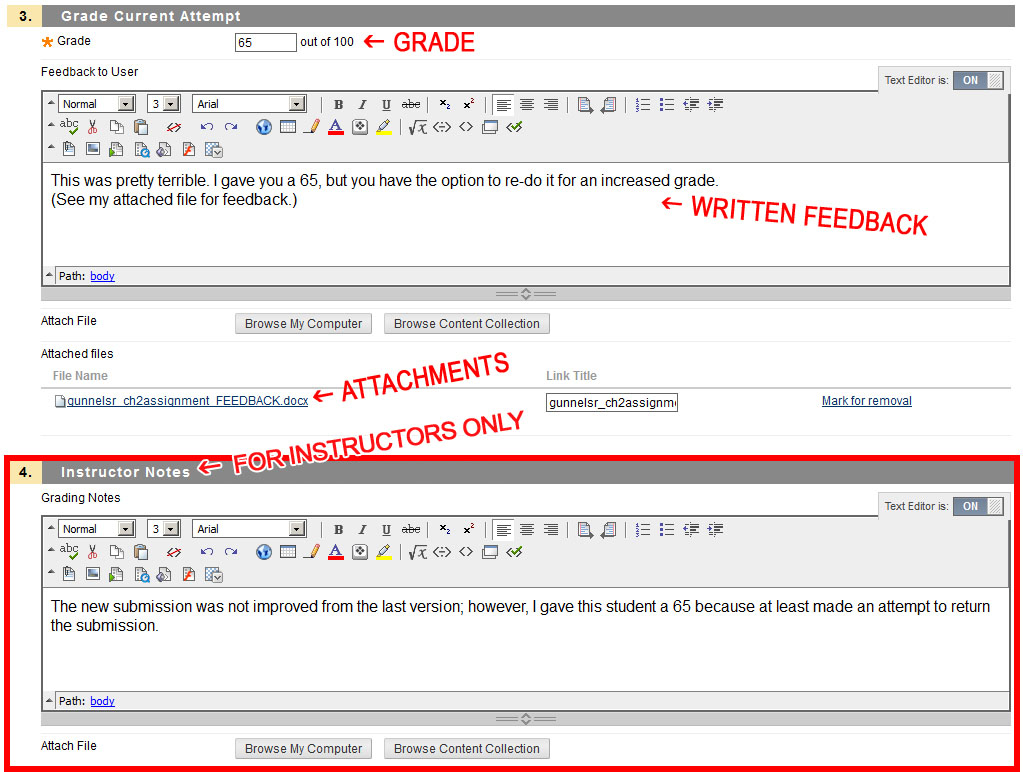
If your students do not seem to be getting their feedback text or attachments, it may be because the faculty member placed the feedback/attachments in the "Grading Notes" area of the assignment or test. The comments and attachments added in this area are meant to be visible only by the instructor.

Follow these when returning feedback/attachments to a student's assignment or test submission:


1. Enter the course and go to the Full Grade Center.

2. Find the column of the assignment/test you wish to grade, and click the drop-down arrow at the very top of the column. Select Grade Attempts.

3. Once you are taken to the Assignment or Test area, scroll down.

Click Image to Enlarge

4. In scrolling down, you will find three sections:
       a. Grade - how many points a student achieved on the submission
       b. Feedback to User - text and attachments that students will be able to see
       c. Grading Notes - text and attachments meant ONLY for instructors to see

Students will only see your feedback and attachments if it is in the Feedback to User area.

Click image to enlarge


Please feel free to call UHD Blackboard Support at (713) 221-2786 if you have any questions about feedback or editing assignment/test attempts.