Showing posts with label Tests. Show all posts

Thursday, October 2, 2014

NEW Access Log for Tests

Instructors can view a test attempt's Access Log for a list of times of various student interactions with the test. The log can help to confirm whether a student began a test or ran into problems during a test.

The Access Log shows a detailed list of every interaction a student had with the test for that attempt. The log shows the time the test was started, when each question was saved, and when it was submitted.
An unusual gap in activity might be
interpreted as a connectivity problem if the student claims to have had one. However, the system cannot determine what caused the time gap—it can only show that it occurred. 

Be aware that the time spent on a  question may include time that the student spent looking at other questions before saving that answer.


Visit the TTLC Training page for step-by-step instructions for retrieving info from the access log:
Determining Test Interaction Using the Access Log

Thursday, September 11, 2014

Understanding Tests Results and Feedback


The way that instructors release test results and feedback has changed with the latest update.  Here are some tips to help understand how it works now.

Start by going to Edit Test Options.

In the Show Test Results and Feedback to Students area, there are two rows of options available.  The top row is the main condition for releasing results and feedback, and the bottom row is an optional sub-condition, which has different options depending on what was selected for the main condition.

By default the settings are as pictured below.
 

The main condition is set to release the score for each question immediately after the student submits the test.  There is no sub-condition, as no conditions are selected in the second row.

Other options are available in the When drop menu, including After Due Date, etc.  There is no option, though, to not show students anything.  If you select --Choose--, it is the same as if After Submission is selected, students will immediately see their results.  If you do not want students to see the test score, you need to hide the column from students in the grade center.
 
If you just want students to only see their score but not see which questions they got right or wrong, you need to select the appropriate option from the When drop menu (your choice) but then leave all of the other options alone.  If you do not check any other boxes, students will only be able to see their score and will not have access to their test attempt.
 
If the Score per Question box is checked, students see the questions from their attempt and the number of points they received (if any) per question.  
 
The Answers area offers many different options.  If Submitted is the only box checked, students will only see the answers they selected, with no others listed.  If Correct is the only box selected, then students just see the correct answers.  If both Correct and Submitted are checked, students see both but not any of the other possible answers.  If All Answers are selected, students can see all available answers, but they still need Correct and Submitted checked to see which is the correct answer and which was the one selected, respectively.  So you can mix and match these options to your liking.
 
Feedback will be shown if checked.  When you create a test question, or edit an existing one, there is an area to provide correct and incorrect feedback.

The Show Incorrect Questions places an icon with a red X next to questions that were answered incorrectly.
 
You can use Student Preview to check how the test appears in My Grades.  Just remember to set it so that the Student Preview data is saved when you leave the preview.
 
As always, call us or email if you need help: 713-221-2786, bb@uhd.edu.

Thursday, March 13, 2014

Important information if you’re using Respondus…


If you’re using Respondus and you edit your test options you will need to reset your Respondus settings.
You can do that with the following steps:

1.  After you have edited your test options go to course tools, Respondus Lockdown Browser.

test options 2.jpgrespondus from tools.jpg


NOTE: Respondus automatically generates a password you will see if you edit the test settings.  Clearing that out will also cause the Respondus settings to need to be reset.
2.  From that window if your settings need to be reset it will display Error with a “Fix it” button
respondus fix it.jpg
3.   Select Fix it.  After the fix is complete it will display “Required”
respondus fixed.jpg

That Didn’t work?

If the error is still displayed after the “Fix It” button has been selected you need to modify the settings.
1.   Select the drop down menu next to the name of the test and select modify settings


 respondus edit settings.jpg
2.   Select “Don't require Respondus LockDown Browser for this exam” and “Don't require Respondus Monitor for this exam”.  Then select Save and Submit.


 turn off respondus monitor.jpg
3.   Then add the original Respondus settings to the test again.

Thursday, February 7, 2013

Print an Exam using Respondus

If you have a test on Blackboard you would like to administer face to face rather than online, the web browser's print feature is not enough. One alternative is Respondus Campus Wide. Respondus Campus Wide allows you to download the tests as a word document and print it out.

To begin open Respondus Campus Wide (RCW); if you do not have RCW installed and would like to use it. Contact the TTLC: 713-221-8200

1. Once you open Respondus go to Retrieval & Reports Tab. Within the Tab, click on Retrieve Questions.
2. You should have the Blackboard Server information already filled out. Click Next, depending on your settings you might be asked to fill out your Blackboard Username and Password.


3. Once logged in, in section 1, use the dropdown menu to select the course to retrieve from.
    a. In section 2, select whether it is an exam, survey, or pool. In this example, select Exam and use the dropdown menu to choose which exam to download.
    b. In section 3, enter a new name for the file.

4. The exam will download and your file saved. Click Ok then Finish.


5. Now click on the Preview and Publish Tab.
    a. Select Print Options
    b. Save to File as a Word Document
    c. Once it is saved, open the Word Document and print from Microsoft Word.


Thursday, October 4, 2012

Deleting a test question and regrading

You can delete questions from the Test Canvas before or after a test is deployed. You can also delete a question if there are test submissions, which removes it from the test, along with any possible points earned. Test attempts are regraded as if the question was not included in the test.

NOTE: If any students are in the process of taking a test, you will not be able to delete questions until they have submitted their work and the test is no longer in progress.


  1. In the Grade Center, click a test’s Action Link in the column header to access the contextual menu. Select Edit Test
  2. On the Test Canvas, select one or more questions to delete using the question check boxes. 


  3. Click Delete and Regrade.


  4. A warning message will pop up for you to confirm your choice. Click OK to confirm.

  5. A green success message should appear above the test canvas and the total questions and points should be updated. 


For more information on grading tests in Blackboard, please visit:
http://www.uhd.edu/computing/ttlc/training/documents/bblearn/Assessments_Grading.pdf.

Contact UHD Blackboard Support at 713-221-2786 if you have any questions.


Changing correct answers and regrading tests

You can edit questions from the Test Canvas at any time. After students have submitted test attempts, you can edit the wording of a question or answer, or reorder questions without affecting existing grades. Changing the correct answer choice of a question causes all existing test attempts to be regraded.
  1. In the Grade Center, click a test’s Action Link in the column header to access the contextual menu. Select Edit Test.

  2. On the Test Canvas, click the Action Link of the question you want to edit. Select Edit.

  3. In this example we are going to change the correct answer from “D” to “A”.  In Section 3, Answers, click the appropriate radio button to change the correct answer.  

  4. Click Submit and Update Attempts in Section 7 to save your changes. 

  5. A warning message will pop up for you to confirm your choice. Click OK to confirm.

  6. A green success message should appear above the test canvas and the total questions and points should be updated.


For more information on grading tests in Blackboard, please visit:
http://www.uhd.edu/computing/ttlc/training/documents/bblearn/Assessments_Grading.pdf.

Contact UHD Blackboard Support at 713-221-2786 if you have any questions.

Wednesday, July 25, 2012

Submitting "In Progress" Test Attempts

Do your students have "In Progress" test attempts that need to be submitted? Follow the directions below to submit test attempts for your students:

  1. Enter the course Grade Center from the Control Panel menu.


  2. Click the action link (double arrow) to the right of the In Progress attempt and select the Attempt.

  3. In the Grade Test window, expand the Test Information section. Click the Submit Attempt button.

  4. In the dialog box that appears, click OK.


  5. The test should now have a score in the Test Information section.

For more information on grading tests in Blackboard, please visit
http://www.uhd.edu/computing/ttlc/training/documents/bblearn/Assessments_Grading.pdf


Contact UHD Blackboard Support at 713-221-2786 if you have any questions.

Thursday, May 31, 2012

What do the dates mean?

In assignment and test settings you have the option of setting three dates: Display After, Display Until, and Due Date.

Display After* – First date/time the assignment will be viewable for the students.

Display Until* – Last date/time the assignment will be viewable for students.  Students who are completing a test or assignment attempt will not have their sessions interrupted by the display until date expiring.

Due Date* - used by the Notification system to fill in the "To Do" module for students to know when an upcoming test/assignment/etc. is going to be due (or is past due).  The Notification system also uses the Due Date to fill in the instructor's "Alerts" module that lets them know when students have tests or assignments that are past due.

*Please keep in mind that you must check the box to the left of a date item if you want the date to apply.  Simply putting a date/time in the available areas does not make the date/time applicable. 

Dates in Assignment settings:


Dates in Test options:

For more information about creating Assignments in Blackboard, visit
http://www.uhd.edu/computing/ttlc/training/documents/bblearn/Assignments_Creating.pdf

Additional information regarding Test creation in Blackboard can be found at
http://www.uhd.edu/computing/ttlc/training/documents/bblearn/Assessments_Creating.pdf


Please contact UHD Blackboard Support at 713-221-2786 if you have any questions.

Allowing multiple attempts on tests?

If multiple attempts are allowed on tests the students must click the "take the Test again" link to begin remaining test attempts. Students begin remaining test attempts by:

1) Students navigate to their test and click on the test name.


2) In the "Begin test" window, students will click Begin (top or bottom link) to start the test.


3) If there is a previous test attempt, students will see the "Test previously taken" window. In this window students should click on the take the Test again link.

Note: The OK button DOES NOT begin a new attempt. Students clicking the OK button in the Test Previously Taken window will be taken to their previous attempt information.  

Additional information on Blackboard test creation can be found at
http://www.uhd.edu/computing/ttlc/training/documents/bblearn/Assessments_Creating.pdf

Training documents and videos for UHD Faculty and Staff are available at
http://www.uhd.edu/computing/ttlc/training/#fragment-2

Please contact UHD Blackboard Support at 713-221-2786 if you have any questions.


Wednesday, May 2, 2012

Assignment & Test Feedback Options


Assignments
While grading assignments, instructors can provide comments as well as upload a revised version of a student’s submission that contains comments within. 


These comments can be seen by students using the My Grades tool, as long as the assignment column is set to be visible to students.


Clicking on the grade score will provide more details to students.  Now the file the instructor attached can be opened.


Tests
1. To see the test options area, click the action link next to the test and click Edit Test Options.


2. Scroll down to section 5: Test Feedback. This governs what students see in their grades area.

This can be set so that when the test is available to students, only the Score is available to them upon completion of the test.  Then once the availability period is over, all options may be checked so that students can see the correct answers.  Students can review their tests by clicking the link of the score they received in My Grades.

Wednesday, April 18, 2012

“This Test can be saved and resumed later” … what does it mean?

This statement is related to Force Completion.  Force Completion is a test option instructors can set that only allows for a one-time entry into a test. If a test has Force Completion enabled and a student accidentally closes the browser, or loses connection to the test, the student cannot reenter the test unless the instructor intervenes.

Students:  Force Completion DOES NOT affect the test timer.  The test timer starts counting down as soon as the Begin button is clicked.  Exiting a browser session during the middle of a test does not stop the test timer.
Reminder: UHD IT Training materials for Students are available at http://www.uhd.edu/computing/ttlc/training/#fragment-3

Faculty: UHD Blackboard Support does not recommend the use of Force Completion due to the many variables that can interrupt a test session.  If you have any questions, please contact UHD Blackboard Support at 713-221-2786 or bb@uhd.edu
Reminder: UHD IT Training materials for Faculty/Staff are available at http://www.uhd.edu/computing/ttlc/training/#fragment-2

Test Instructions (student view) with Force Completion turned ON:


 Test Instructions (student view) with Force Completion turned OFF:


Friday, February 17, 2012

Assignments/Tests - Students Not Getting Feedback?

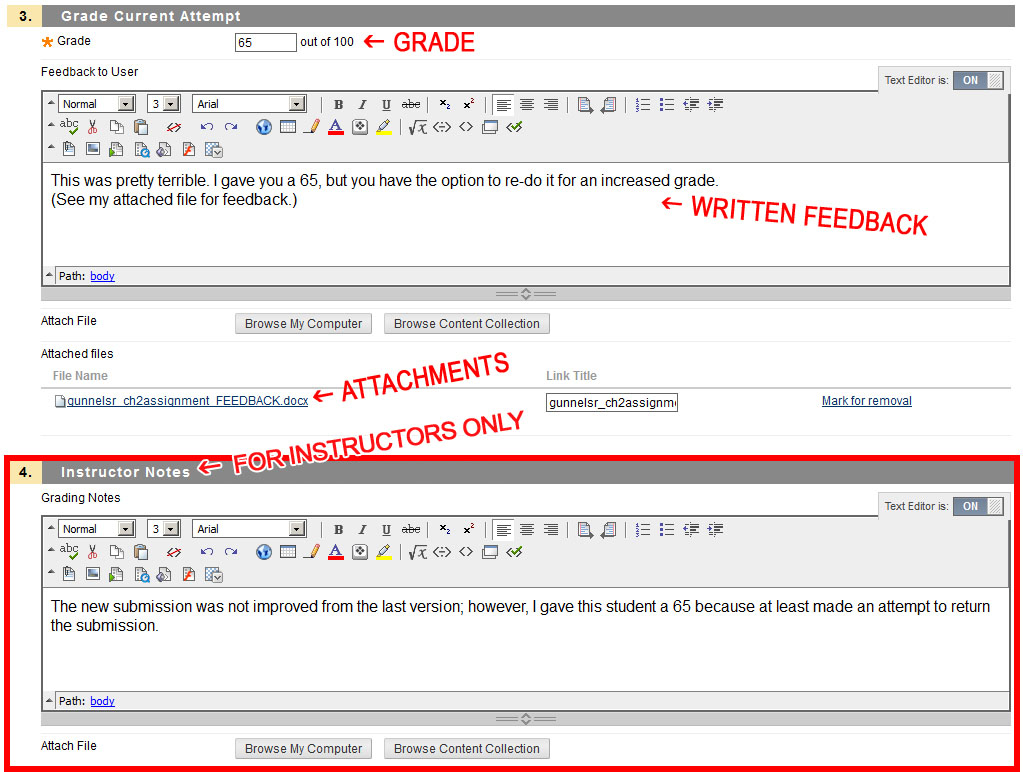
If your students do not seem to be getting their feedback text or attachments, it may be because the faculty member placed the feedback/attachments in the "Grading Notes" area of the assignment or test. The comments and attachments added in this area are meant to be visible only by the instructor.

Follow these when returning feedback/attachments to a student's assignment or test submission:


1. Enter the course and go to the Full Grade Center.

2. Find the column of the assignment/test you wish to grade, and click the drop-down arrow at the very top of the column. Select Grade Attempts.

3. Once you are taken to the Assignment or Test area, scroll down.

Click Image to Enlarge

4. In scrolling down, you will find three sections:
       a. Grade - how many points a student achieved on the submission
       b. Feedback to User - text and attachments that students will be able to see
       c. Grading Notes - text and attachments meant ONLY for instructors to see

Students will only see your feedback and attachments if it is in the Feedback to User area.

Click image to enlarge


Please feel free to call UHD Blackboard Support at (713) 221-2786 if you have any questions about feedback or editing assignment/test attempts.


Wednesday, February 8, 2012

Export and Import a Test

Need to move a test from one course to another?

Export the Test from a Course

1. Under your course control panel, click Course Tools, and select Tests, Surveys, and Pools.

2. In the Test, Surveys, and Pools window, click Tests.

3.  Click the action link to the right of the test you wish to copy and click Export to Local Computer.


4.  A zip file of your test is created that you can save to your local computer.


Import the Test into a Different Course

1.  To import a test, go to Tests, Surveys, and Pools, and click Tests.

2.  Click the Import Test button.


2.  Click the Browse My Computer button, select your test file, and click Open

3.  Click the Submit button. Your test will appear in the Tests, Surveys, and Pools area, ready to be deployed into a content area.


If you have any questions,
contact Blackboard Support
at 713-221-2786.


Delete Test Attempt

Need to delete a test attempt for a student?

1. Go to the Full Grade Center under the Course Management Control Panel.


2.  Hover your mouse pointer over the appropriate grade center entry for the test attempt you wish to clear. A drop-down arrow will appear; click it and select which attempt to wish to clear.


4.  In the attempt area, the Test Information section may be minimized; maximize it and click the Clear Attempt button.


5.  Confirm your attempt removal to complete removing the attempt.  The Grade Center should now show the attempt had been removed.