Showing posts with label SP 11. Show all posts

Monday, September 9, 2013

Attendance: Check Users' Last Course Access in Blackboard


The Last Access column, which is included by default in the grade center, contains the date of the last course access for each user. 

Check the last course access:
1. Under the Course Management area select Grade Center, Full Grade Center.
The last access column is located with the other default columns in Blackboard 
(Last Name, First Name, Student ID, Last Access, and Availability).

 If this column is not visible it could be hidden and can be added by showing the column.

Show hidden columns:
1. Under the Course Management area select Grade Center, Full Grade Center.

2. Move the cursor over the Manage button and select Column Organization. 

3. The default columns are displayed at the top of the page and will be marked hidden if they are not visible in the full grade center.

4. Select the check box and move the cursor over the the Show/Hide button.  Click show selected columns. 

5. Select Submit to save.

Friday, August 9, 2013

Things to Consider when Developing your Course Menu

Do you strive for order and consistency in your online courses? If so, you’ll want to be aware of the different ways to organize your course menu in SP11. Although you’ll use a desktop or laptop to develop your course, more and more of your students will be viewing that content on a handset or tablet via the Blackboard Mobile Learn app. Check out the free app for your Android or iOS device to test the differences across traditional and mobile platforms.
  •  Menu items include Content Areas, Tool Links, Subheaders, and Dividers (among other things)
  • All items can be added to your menu by clicking the Add Menu Item button 
  • Menu items can be deleted, shown/hidden, or renamed by clicking the action link to the right of the item 
  • Check out this Course Menu link for more helpful tips!


Thursday, August 1, 2013

NEW Discussions Option! Participants must create a thread in order to view other threads in a forum.

Now discussions have additional control by limiting a users’ view of other posts unless they have posted at least one thread.  This prevents students from sifting through responses before submitting their own. 

In creating a Forum you will fill out sections 1 and 2 (Forum info and Forum availability).
Under Section 3 Forum settings, a new option appears titled Viewing Threads/Replies.  Select Participants must create a thread in order to view other threads in this forum.  This option prevents students from seeing what others are posting prior to posting their own response to the initial discussion assignment.  

Once you have chosen and verified the Discussion settings, click the Submit button.

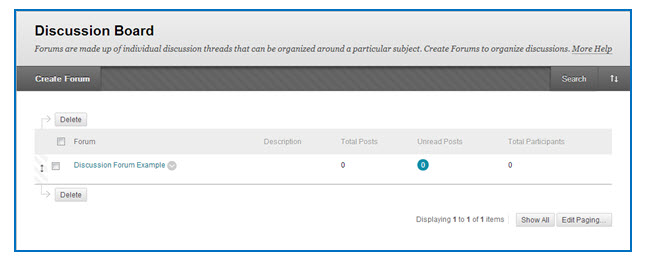
The new Forum will now be listed in the Discussions Boards area. To view its entries, click its title.
For more info about Discussions click HERE

Wednesday, July 17, 2013

Weighted Columns: Equally vs Proportionally


Grades can be weighted both equally and proportionally in Blackboard depending on the point values of each grade center column.  Using the Weighted Total Column will allow application of weighted percentages (rather than a summed total of points which is the Total Column’s function).  Both Total and Weighted Total columns are available in the Grade Center by default.

Weighted Total Column- A Weighted Column calculates and displays a grade based on selected assessments, or categories of grades, to calculate the total grade.
Instructions for creating a weighted column are below:
Weighted Grade Column
The following displays the workflow for creating a Weighted Grade Column based on four (4) columns:

  • Mid-term Exam = 20%
  • Final Exam = 30%
  • Assignments Category = 25%
  • Quizzes Category = 25%


To create the Weighted Grade Column, do the following:


  1. Move the cursor over the Create Calculated Column icon in the Action Bar of the Grade Center.
  2. Select Weighted Column
  3. Enter a Column Name.
  4. Enter a Grade Center Display Name.
  5. Enter a Description.
  6. Select Primary Display and Secondary Display options from the drop-down menus available.
  7. Select the items to be included in the Weighted Grade Column, and enter the percentages for each Column or Category to be included in the Weighted Grade.


Columns to Select – A list of all columns in the Grade Center. Select the Column and click the arrow to add it to the Weighted Grade column.

*Categories to Select – A list of all Categories in the Grade Center. Select the category and click the arrow to add it to the Weighted Grade column.

*With a weighted total column Blackboard assumes equal points per assignment unless you specify otherwise.  You have to specify proportional if the total available points is different for each assignment.


If you’re weighting by category AND you have different points associated with different assignments within the same category you should weight proportionally.  Blackboard will calculate the weighted total by dividing by the total points available and not assume each assignment is worth the same amount of points.  OR you could make all of your assignments worth 100 points and keep it at equally.


Thursday, June 20, 2013

New Feature in Blackboard This Fall-Automatic Calendar Sync

In the latest upgrade Blackboard provides you with a better calendar function, which includes other courses in your calendar and assignment synchronization. When adding an assignment in a Blackboard Content area Blackboard Learn will now automatically link to the calendar tool.


Selecting the Due Date option adds the assignment directly to the calendar.

Select Calendar from the Course Menu
An event with the description appears in the calendar area.