Showing posts with label Groups. Show all posts

Thursday, January 29, 2015

Adding Students to Already-Made Groups


Students that added late to a class will not automatically be placed into Blackboard groups that were created before the student was enrolled.  This is true no matter how the group was set up; if the instructor set Blackboard to randomly assign students to groups, the membership is set once the groups are created -- students subsequently coming in to the course will not be automatically put into groups.
 
Fortunately, Blackboard makes it easy to see who is not in a group and assign them to groups as needed.
 
 
1. Go to the Groups area of the Control Panel.
 

2. On the top right, switch to All Users view.


    3. All students will be listed, and what group if any they belong to.  Mouse over a student’s name to bring up the Add to Group function.


    4. Click Add to Group and use the drop menu to select from available groups.


    The student is now in the specified group. 


    Wednesday, June 20, 2012

    Adding Demo Student to a Group

    There are times when a professor wishes to add their demo student account to Blackboard to view group environments. Follow these instructions to add the course demo student to a group:

    1.  From within the Groups area of the course, click on the action link (double arrow) beside an existing group. Select Edit.

    2. Scroll down to the Membership area, and from the list of names on the left, select User, Demo.

    3. Click the right-pointing arrow to move the selected student into the box on the right.

    4. Once Demo User has been added to the appropriate group, go to Student View from the Course Tools menu at left.

    5. Once in Student View, the group(s) assigned to Demo User will be visible in the Groups area of the course, as well as in the My Groups menu at bottom left.


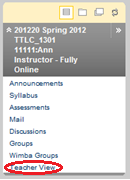
    6. To exit Student View, you will need to click on Teacher View at the bottom of the course menu.


    For more information about Blackboard groups, please visit
    http://www.uhd.edu/computing/ttlc/training/documents/bblearn/Groups.pdf.

    Contact UHD Blackboard Support at 713-221-2786 for support with online course components.

    Creating a Group Assignment

    Instructors have the ability to create assignments and release them only to specific groups.  Instructors can create a single assignment and assign it to all groups, or create several unique assignments and assign them to different groups. Only the instructor and the members in the group have access to the assignment once it has been properly set up.

    When creating an assignment, select the radio button for Groups of Students.


    The groups recipient window will expand.

    In the Items to Select box, select the group or groups to be included in the assignment. To select multiple groups, press the CTRL key and click each group. You may also select all groups with the Select All function.


    Click the right-pointing arrow to move the selection into the Selected Items box. Only groups included in the Selected Items box will be able to view/complete the assignment.


    For more information about Blackboard groups, please visit
    http://www.uhd.edu/computing/ttlc/training/documents/bblearn/Groups.pdf.

    Contact UHD Blackboard Support at 713-221-2786 for support with online course components.

    Group Tool Availability

    Course groups allow instructors and students to create groups of students within a course. Each group has its own area in the course equipped with tools to assist in the collaborative process.

    When creating or editing a group, the instructor may select among several group tools in the Tool Availability section.

    The following is a description of the available tools:
    • Blogs - students in the group can create blog entries and add comments to share ideas. Instructors can grade group blogs, but once a group blog is set to be graded, it cannot be changed back to non-graded.
    • Collaboration - students in the group can create and attend real-time chat or virtual classroom sessions.
    • Discussion Board - students in the group can communicate and create/manage their own forums. This group discussion board is available only to its group members, not to all students in the course.
    • Email -  allows group members to send email to each other within the course.  A copy of emails are sent to the sender by default.
    • File Exchange - group members and instructors can use this tool to upload documents to the group area. All group members and the instructor can add, download and delete files, regardless of who added them.
    • Journal - students in the group can share thoughts and communicate with the instructor. Journal entries made in the group journal are visible to all group members and the instructor.
    • Tasks - group members can define and separate the workload into tasks, while distributing the list to the entire group. Each task has a status and a due date to help keep members on track.
    • Wiki - Wikis are used to create a collaborative space that group members can view, contribute, and edit content. By default, group wikis can be read by all course members, but only members of the group can comment or alter a its wiki page.
    The selected tools will then appear to the students in the Group Tools module of the group's homepage.

    For more information about Blackboard groups, please visit
    http://www.uhd.edu/computing/ttlc/training/documents/bblearn/Groups.pdf

    Contact UHD Blackboard Support at 713-221-2786 for support with online course components.

    Friday, June 8, 2012

    Using the Groups Viewer Tool

    The Groups Viewer tool is an add-on tool (not developed by Blackboard) that lets instructors quickly see group membership.  Previously, instructors would need to individually edit the groups in order to see the student membership.
    Groups Viewer displays in the Course Tools area of the Control Panel.


    If you do not see it listed, expand the Customization area of the Control Panel and click Tool Availability.  Locate Groups Viewer in the list and click the check box next to it.


    The Groups Viewer screen shows you the roster of the class and to which group each member belongs. The list can be sorted by Group, as well.


    Buttons at the bottom of the page allow you to print the list or download it as a .csv.

    More information about Blackboard Groups can be found at http://www.uhd.edu/computing/ttlc/training/documents/bblearn/Groups.pdf

    Please contact UHD Blackboard Support at 713-221-2786 if you have any questions.