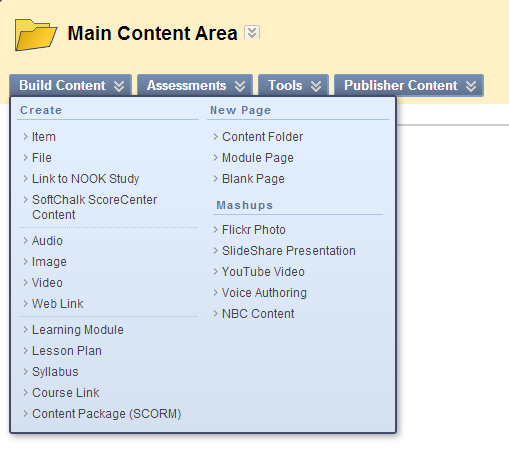
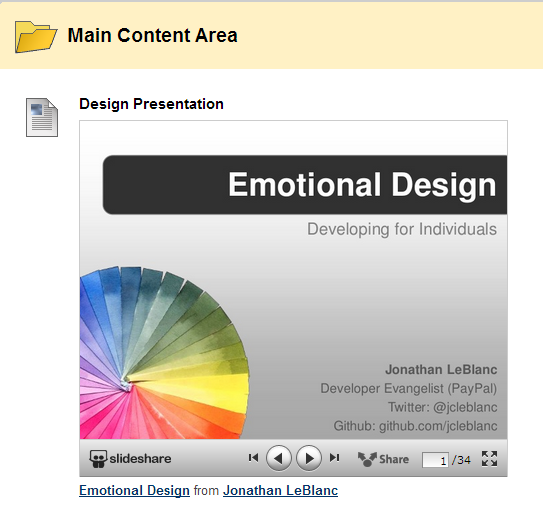
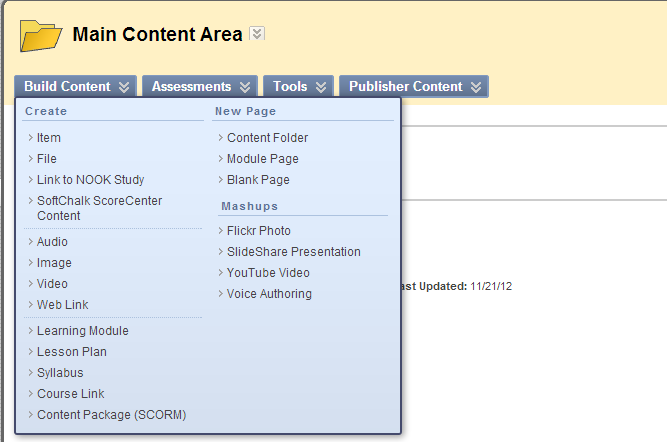
The current Mashup tool for inserting Slideshare Presentations is having API issues, so it is non-responsive. But this does not mean that you can no longer insert Slideshare presentations into your class. Here are six steps on how to insert a Slideshare Presentation into Blackboard.
1. Create an item
2. Turn on HTML editor
3. Visit Slideshare; find the presentation you would like to use.
4. Click on embed and click copy.
5. Switch back to Blackboard Learn; paste the HTML code into the text field, click Submit.
6. Preview the presentation inside Blackboard.
Showing posts with label HTML. Show all posts
Thursday, March 21, 2013
Wednesday, January 16, 2013
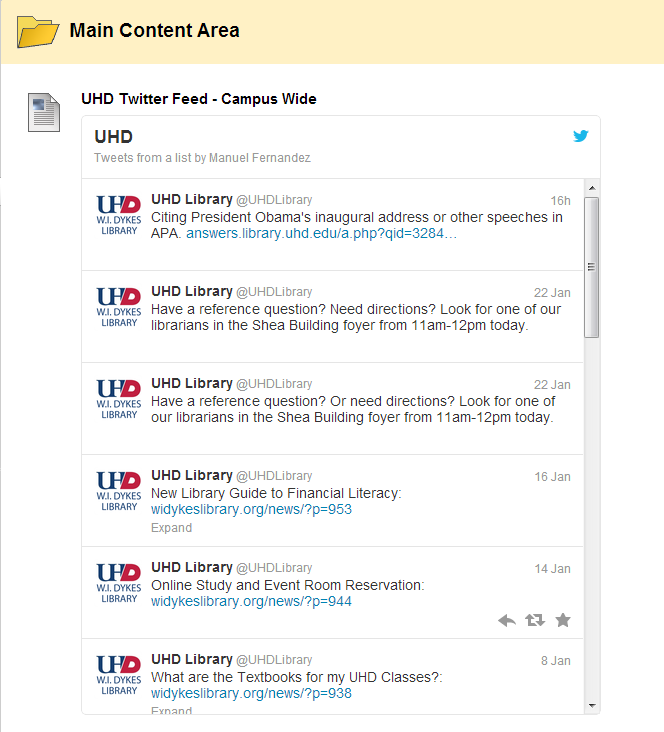
Embed a Twitter App into Blackboard
Twitter is a social network with a
limit of 140 characters. Do not be fooled by the character limitation. It is
still a powerful platform for networking with leaders in a variety of fields
and searching for information. Twitter also has these things called widgets
that can be embedded in websites using the html script provided. This guide
will walk you on how to obtain such a widget for your class, and also how to
embed it into the course. But first, what are some ways of implementing a
twitter feed in your blackboard? I know one professor that would tweet the
answers to the study guide as the final approached, meaning the student could
cross-check and make sure they had the right answer. Twitter lets you create
lists of things you like to know about; create an account and follow the
accounts of various leaders in the field of study and link the list into
Blackboard. Twitter’s famous # (hash-tags) are the way in which subjects are
separated into “trending topics”; for example, search for #CogSci, #Economics, #Literature,
#Math, etc. and provide students with news and information from individuals
within that field of study. Ready? Let’s begin:
1. Inside the course click on the Content folder you wish to insert the Twitter App into.
2. Click on Build an Item. In the new window that pops up click the toggle HTML source mode (<>) in the text editor.
Now go to twitter.com and log in or, if you prefer, create a new account.
1. Once you are logged in, go to Settings and click on Widgets: Create New.
2. In the "configure a search widget" you have 4 tabs: User timeline, Favorites, Lists, Search. For this example, the search tab was chosen. On the options fields fill out: search query; add (if any) customized height options; select the theme (light or dark); the link color; fill out the domain as: bb.uhd.edu; when you are done click on the Create Widget.
3. When you click on Create Widget, it will create an html script that you can embed into Blackboard. Copy and paste the script into the Blackboard text editor with HTML Source turned on.
4. Click Submit.
Wednesday, December 19, 2012
Embedding HTML code into Blackboard
Blackboard allows for the embedding of HTML code for web native applications. This post will cover how to embed a web application into Blackboard in a few steps. Starting from the home page here are the steps to embed an HTML application, for this example we will use Quizlet web app -a description and an example of quizlet is at the bottom of this blog-.
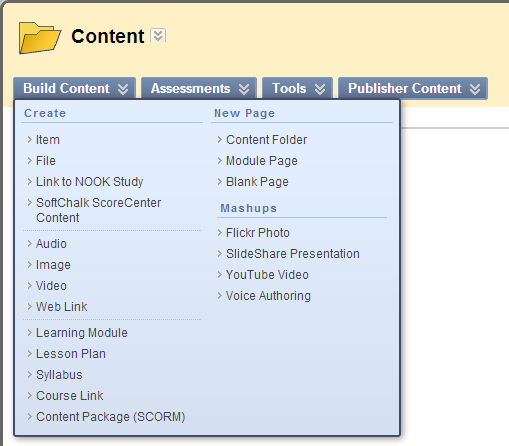
1. Assuming you have a content folder, click on Content. In the Content page, from the Build Content tab select Item.
2 .In the Create Item page, make sure Text Editor is turned on. One of the options is Toggle HTML source, it is represented by two angle brackets (< >), click on it to toggle on HTML source.
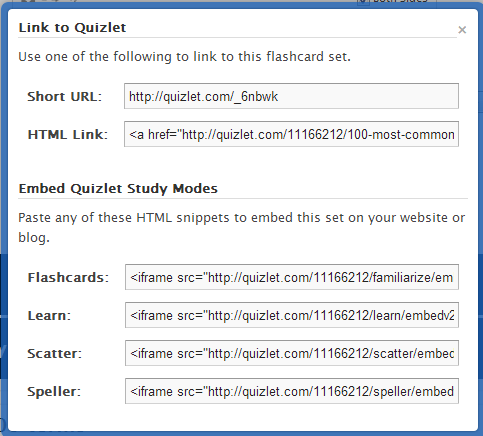
3. Click on the link (quizlet SAT words), this will open up a set of interactive flashcards. On the top-left corner under "Share this set" click on the option "Link or embed".
4. A small window will pop-up with several options. We want to embed the "Flashcards" html snippet. Highlight the HTML code, right click and copy (Ctrl + C) it.
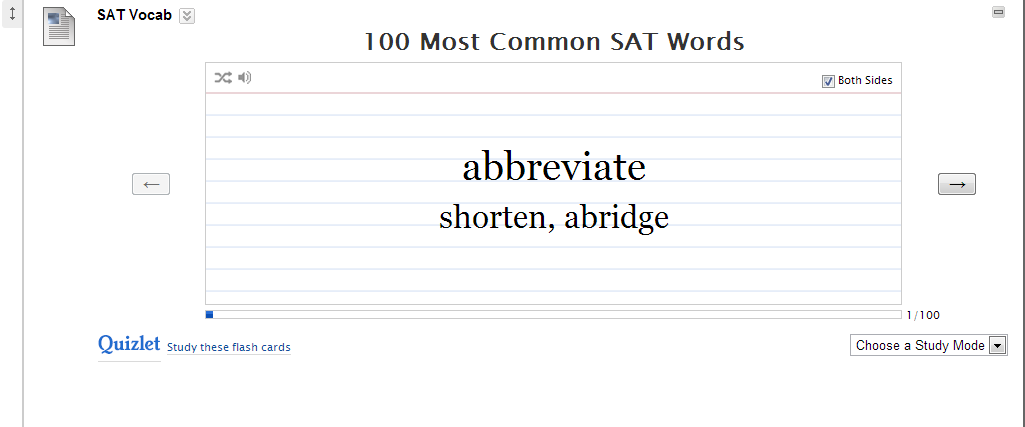
5. Switch back to the Create Item page, give the item a name (SAT Vocab); paste the HTML snippet that you copied into the text editor and click Submit.
6. Congratulations, you have just embedded a piece of code into Blackboard that allows students to interact with an online web application.
Quizlet.com is an online crowdsourced (a la Wikipedia) repository of Flashcards. The student or teacher fills out the blanks for each term and definition or it can be exported from a word document, or excel (.csv) file. The website has lots of features and it is free, the only exception is the uploading of images. This app is useful for classes with glossaries, technical vocabulary, and important dates to remember. One can have a static glossary and include a Flashcard mode for students to engage in active learning.
See Below for a demonstration:
1. Assuming you have a content folder, click on Content. In the Content page, from the Build Content tab select Item.
2 .In the Create Item page, make sure Text Editor is turned on. One of the options is Toggle HTML source, it is represented by two angle brackets (< >), click on it to toggle on HTML source.
3. Click on the link (quizlet SAT words), this will open up a set of interactive flashcards. On the top-left corner under "Share this set" click on the option "Link or embed".
4. A small window will pop-up with several options. We want to embed the "Flashcards" html snippet. Highlight the HTML code, right click and copy (Ctrl + C) it.
5. Switch back to the Create Item page, give the item a name (SAT Vocab); paste the HTML snippet that you copied into the text editor and click Submit.
6. Congratulations, you have just embedded a piece of code into Blackboard that allows students to interact with an online web application.
Quizlet.com is an online crowdsourced (a la Wikipedia) repository of Flashcards. The student or teacher fills out the blanks for each term and definition or it can be exported from a word document, or excel (.csv) file. The website has lots of features and it is free, the only exception is the uploading of images. This app is useful for classes with glossaries, technical vocabulary, and important dates to remember. One can have a static glossary and include a Flashcard mode for students to engage in active learning.
See Below for a demonstration:
Subscribe to:
Posts (Atom)