Showing posts with label Demo Student. Show all posts

Thursday, August 2, 2012

Student View

Do you want to see and interact with your course as your students do? Blackboard has a built-in sample student in the Grade Center of your course to help you calculate your semester grades, practice grading, and taking assignments/exams.

Go to the Control Panel menu at bottom left, and click Course Tools. Among the options that expand, select Student View.
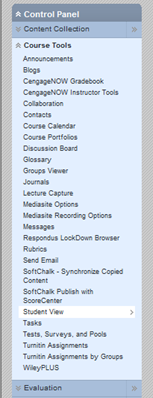
Student View allows you to view whether or not tests are available, what the My Grades tool looks like from the student perspective, and other course functions students use.


In Student View, the instructor's Control Panel menu is gone; it has been replaced by a single link at the bottom of the Course Menu called Teacher View.  If you click Teacher View, you leave the simulated student view to resume instructor use of Blackboard. 
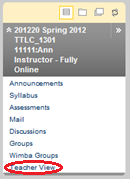
 
Note: You must return to Teacher View after using the Student View function, or your Blackboard session will remain in Student View and you will be unable to access other courses.

Once you have returned to Teacher View, the student Demo User has been activated in the Grade Center.  This additional student allows you to become more familiar with the Grade Center, grading, and formulas without disturbing actual student grades.


If you would like to add the Demo User to a course group, follow the instructions found on a previous blog entry - http://uhdttlc.blogspot.com/2012/06/adding-demo-student-to-group.html

Contact UHD Blackboard Support at 713-221-2786 if you have any questions.  


Wednesday, June 20, 2012

Adding Demo Student to a Group

There are times when a professor wishes to add their demo student account to Blackboard to view group environments. Follow these instructions to add the course demo student to a group:

  1.  From within the Groups area of the course, click on the action link (double arrow) beside an existing group. Select Edit.

  2. Scroll down to the Membership area, and from the list of names on the left, select User, Demo.

  3. Click the right-pointing arrow to move the selected student into the box on the right.

  4. Once Demo User has been added to the appropriate group, go to Student View from the Course Tools menu at left.

  5. Once in Student View, the group(s) assigned to Demo User will be visible in the Groups area of the course, as well as in the My Groups menu at bottom left.


  6. To exit Student View, you will need to click on Teacher View at the bottom of the course menu.


For more information about Blackboard groups, please visit
http://www.uhd.edu/computing/ttlc/training/documents/bblearn/Groups.pdf.

Contact UHD Blackboard Support at 713-221-2786 for support with online course components.