Showing posts with label Glossary. Show all posts

Wednesday, December 19, 2012

Embedding HTML code into Blackboard

 Blackboard allows for the embedding of HTML code for web native applications. This post will cover how to embed a web application into Blackboard in a few steps. Starting from the home page here are the steps to embed an HTML application, for this example we will use Quizlet web app -a description and an example of quizlet is at the bottom of this blog-.
 
 
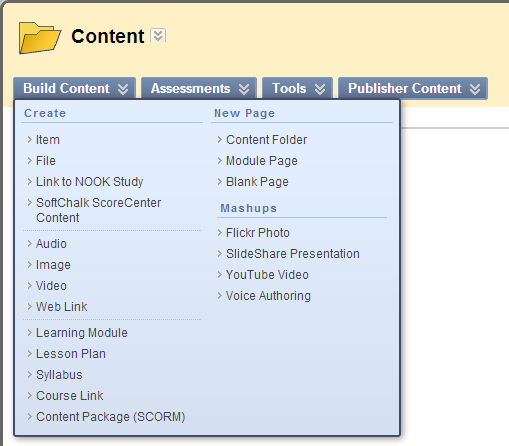
1. Assuming you have a content folder, click on Content. In the Content page, from the Build Content tab select Item. 

2 .In the Create Item page, make sure Text Editor is turned on. One of the options is Toggle HTML source, it is represented by two angle brackets (< >), click on it to toggle on HTML source.  


3. Click on the link (quizlet SAT words), this will open up a set of interactive flashcards. On the top-left corner under "Share this set" click on the option "Link or embed".
 

4. A small window will pop-up with several options. We want to embed the "Flashcards" html snippet. Highlight the HTML code, right click and copy (Ctrl + C) it. 
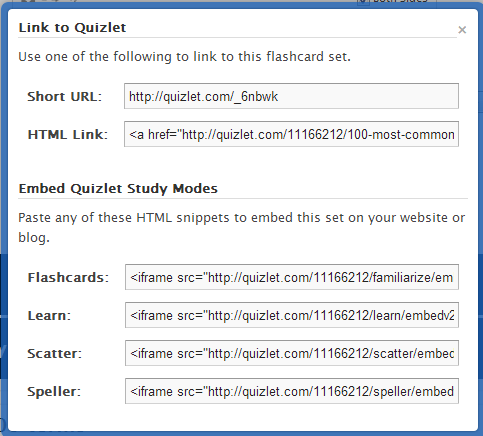
5. Switch back to the Create Item page, give the item a name (SAT Vocab); paste the HTML snippet that you copied into the text editor and click Submit.  

6. Congratulations, you have just embedded a piece of code into Blackboard that allows students to interact with an online web application.  
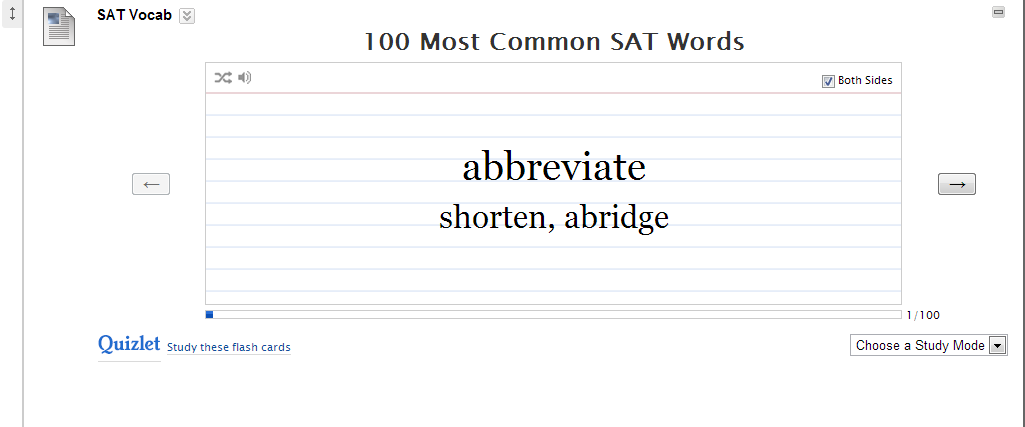

 
Quizlet.com is an online crowdsourced (a la Wikipedia) repository of Flashcards. The student or teacher fills out the blanks for each term and definition or it can be exported from a word document, or excel (.csv) file. The website has lots of features and it is free, the only exception is the uploading of images. This app is useful for classes with glossaries, technical vocabulary, and important dates to remember. One can have a static glossary and include a Flashcard mode for students to engage in active learning.
See Below for a demonstration:


Wednesday, November 14, 2012

How to Upload a Glossary

   For classes that deal with a lot of new vocabulary words, a Glossary is an essential tool. This guide will show the steps to upload a Glossary into Blackboard Learn.
For this guide, you can use the following exercise document to follow the steps:

Glossary Exercise File

1.   While in the home page, on the bottom left in the Blackboard Control Panel under Course Tools, click on Glossary.

 2.  The two options are Upload and Download Glossary, click on Upload Glossary.


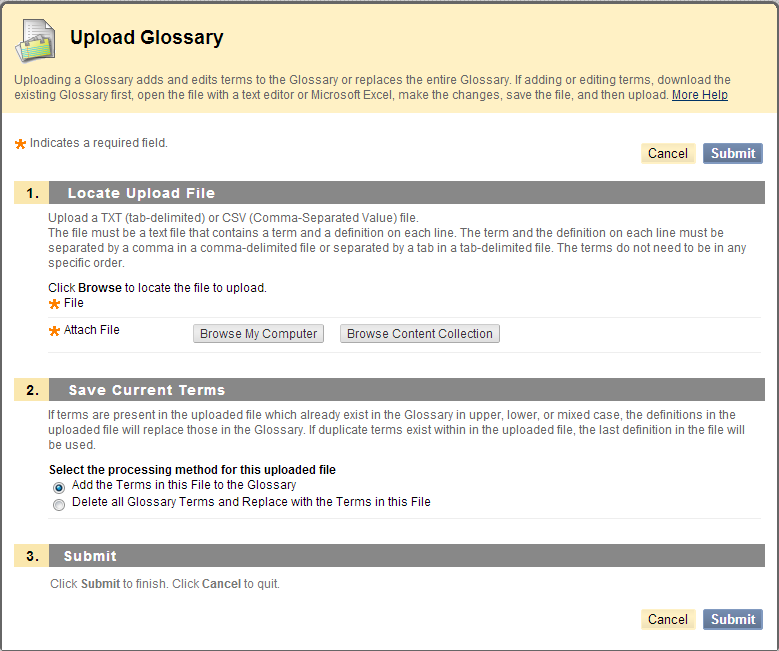
3. In this new page, click on the Browse my Computer button, the two accepted files formats for creating a glossary are text files (.txt) and comma delimited (.csv). For this example the file is comma delimited (.csv).
4.  Select the Glossary file and Click Open

5. Once the file is attached, in section 2 you can choose to add terms in this file to those already in the Glossary, or to completely replace the previous terms with the brand file. Once that is done click Submit. 
6. The Glossary will now show the terms and definitions and can be viewed by all users. Users can also jump to the letter of their choice at the top left corner.