Showing posts with label Discussions. Show all posts

Thursday, August 1, 2013

NEW Discussions Option! Participants must create a thread in order to view other threads in a forum.

Now discussions have additional control by limiting a users’ view of other posts unless they have posted at least one thread.  This prevents students from sifting through responses before submitting their own. 

In creating a Forum you will fill out sections 1 and 2 (Forum info and Forum availability).
Under Section 3 Forum settings, a new option appears titled Viewing Threads/Replies.  Select Participants must create a thread in order to view other threads in this forum.  This option prevents students from seeing what others are posting prior to posting their own response to the initial discussion assignment.  

Once you have chosen and verified the Discussion settings, click the Submit button.

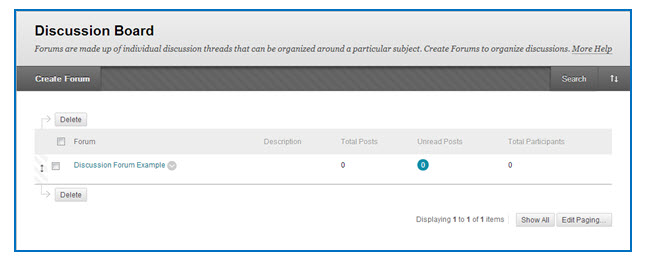
The new Forum will now be listed in the Discussions Boards area. To view its entries, click its title.
For more info about Discussions click HERE

Friday, March 23, 2012

Downloading discussion threads

Instructors that would like to gather their discussion threads into a document that can be easily viewed have the ability to do so. To download discussion threads:
  1. Go into a forum containing threads.


  2. Use the top check box to select all the forum threads. Next, click on the Collect button.


  3. From within the collection area you will see the posts are organized in an easily readable format.  Click the Print Preview button at the top. 


  4. Print Preview allows you to

    • Print your collected posts to a connected printer.
    • Save the file as an HTML file that can be saved to your local computer (different browsers have different options for this).
    • If installed you can turn the collection into a PDF file that can be saved to your local computer.


Making a discussion forum gradable

Want to grade a discussion after a set number of posts? Follow these easy steps:
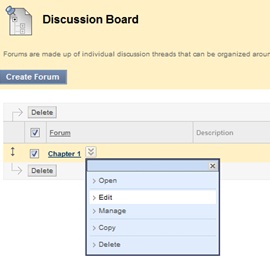
  1. Navigate to the forum you wish to make gradable and click the drop-down to the right of the forum name.  Select Edit from the drop down menu.


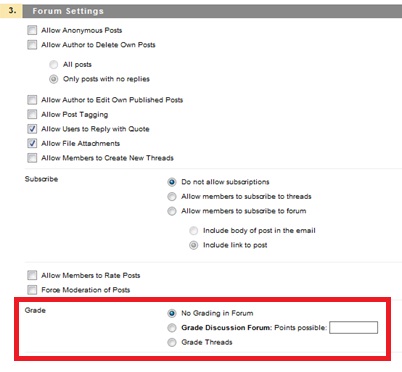
  2. In Section 3, Forum Settings you have the option to grade the forum as a whole or grade the individual threads in the Grade area.
    • To grade the forum as a whole, select the radio button beside Grade Discussion Forum. 
    • To grade the individual threads, select the radio button beside Grade Threads.


  3. Both grading options allow you the option to determine how many posts will exist before the Needs Grading icon will appear in your grade center. To make this determination, click the check box beside “Show participants in “needs grading” status”. Then select from the drop down menu the number of posts you will require before the needs grading status will appear.


  4. Click Submit to apply your grading changes to the forum.

Friday, February 10, 2012

Applying a Rubric to a Graded Discussion

Rubrics allow you to apply specific grading criteria on your students' work and provide detailed explanations regarding your grading decisions.  A rubric can be applied to an assignment, test or a discussion topic.  One would apply a rubric to a discussion forum so the threads can be easily graded. 

To apply an already-created rubric and apply it to a discussion forum, follow these steps: 

1. Go to the discussion board to which you wish to apply the rubric, and click its drop-down arrow. Select Edit.  

2. Scroll down to Section 3, Grade Settings.  Make the forum graded by selecting the radio button next to Grade Discussion Forum and choose the amount of points possible. 

3. When you click the aforementioned radio button, the Rubrics options will appear. Hover your mouse over the Add Rubric button to select an existing rubric or create a new one on the spot. 
 

4. The Grade Threads option also allows rubrics to be used, but the rubric must be applied via the Grade Center discussion column for the graded thread.  
           a. To choose this option, go to the Grade Center. 
           b. Find the column of the discussion and click its drop-down arrow.
           c. Select Edit Column Information add a rubric to the graded thread.
           d. Scroll down to where it says "Points Possible" and click the Add Rubric button.
          
           e. Click Select Rubric, choose the correct rubric and Submit.


Click here to watch a video about how to create a rubric.

If you have any questions,
contact Blackboard Support
at 713-221-2786.